
AI in Practice No. 01: October 2026 product updates
Scheduled research, drafting in Word, and issue-by-issue Office Action responses.
Scheduled research, drafting in Word, and issue-by-issue Office Action responses.
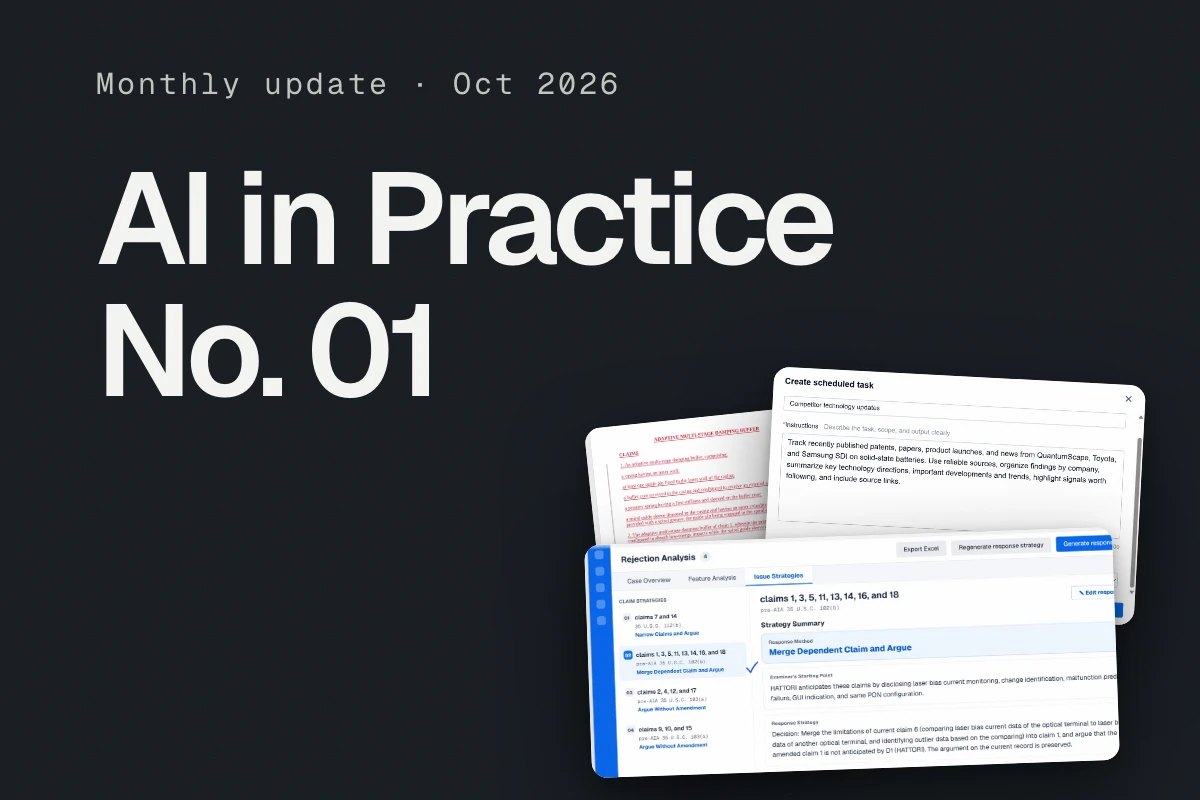
October's updates in Patsnap Eureka take on three kinds of repeat work. You can put a weekly research question on a schedule, revise a patent draft from your Word comments, and work through an Office Action one rejection at a time.
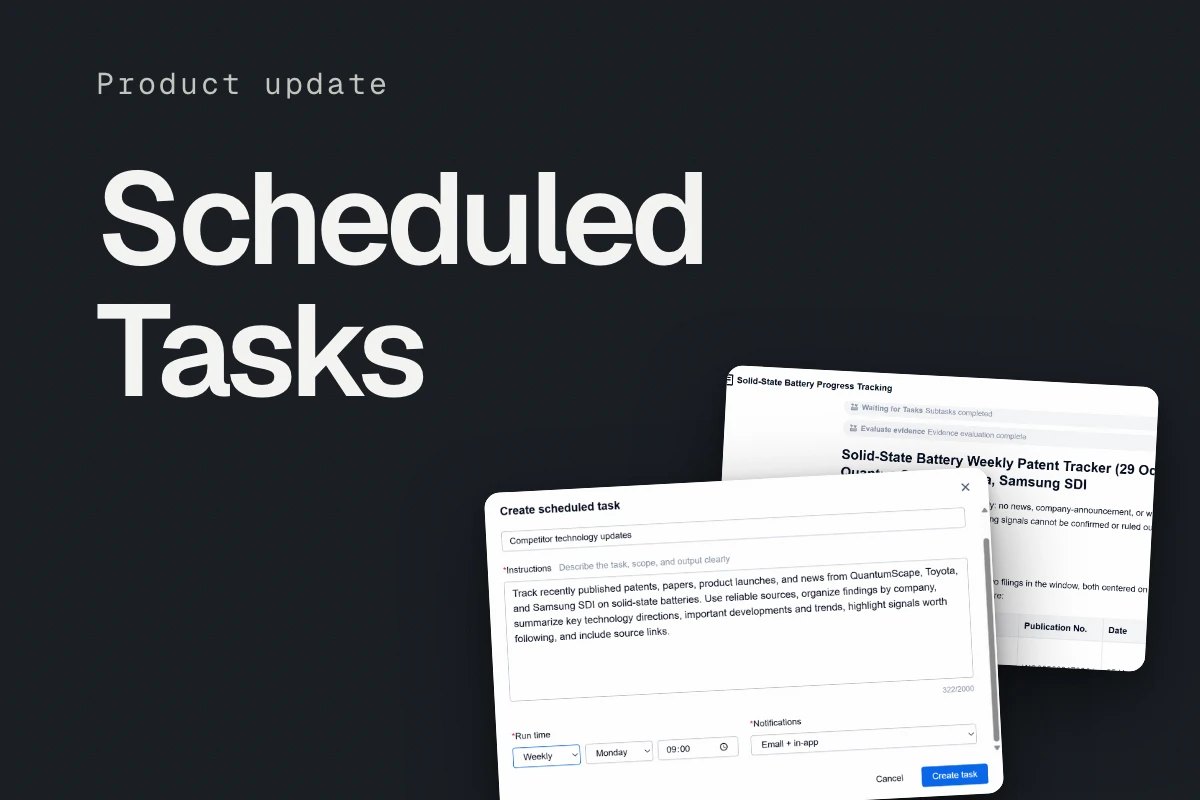
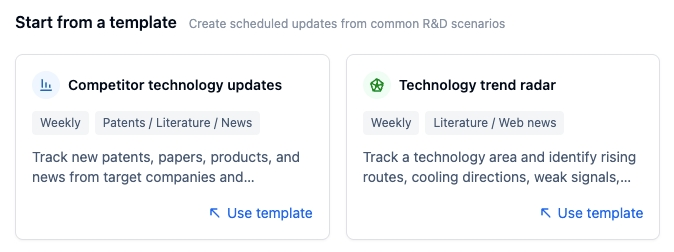
Competitor watches and technology scans ask the same question each cycle, and rebuilding the search is the first thing to slip in a busy week. With Scheduled Tasks, you write the research task once and choose when it runs. Start from an R&D template such as Competitor technology updates, describe the task in chat, or fill in a short form.
You can ask for a search of newly published patents and papers. In our November 6 test, the weekly report linked to the patents it cited. You can also choose to get an email summary when a run finishes. Scheduled Tasks is in the left sidebar of the Patsnap Eureka home page.
See how a weekly competitor tracker works →
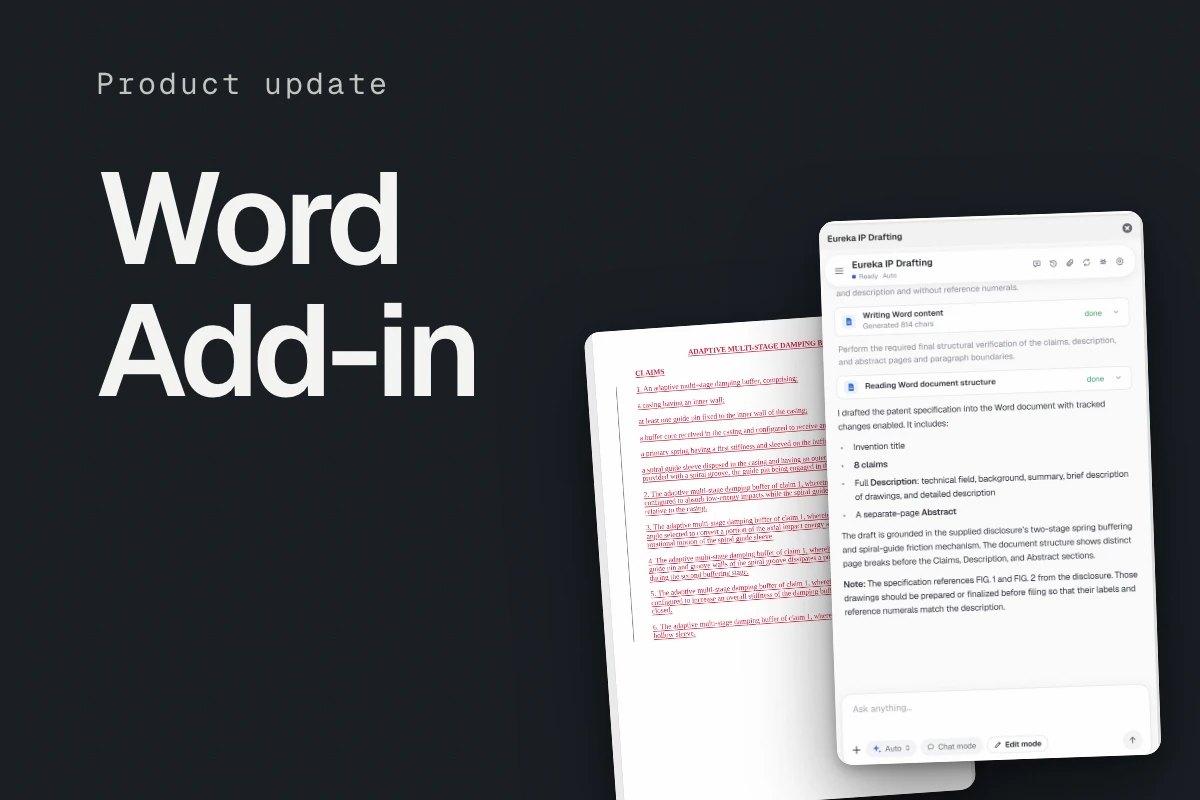
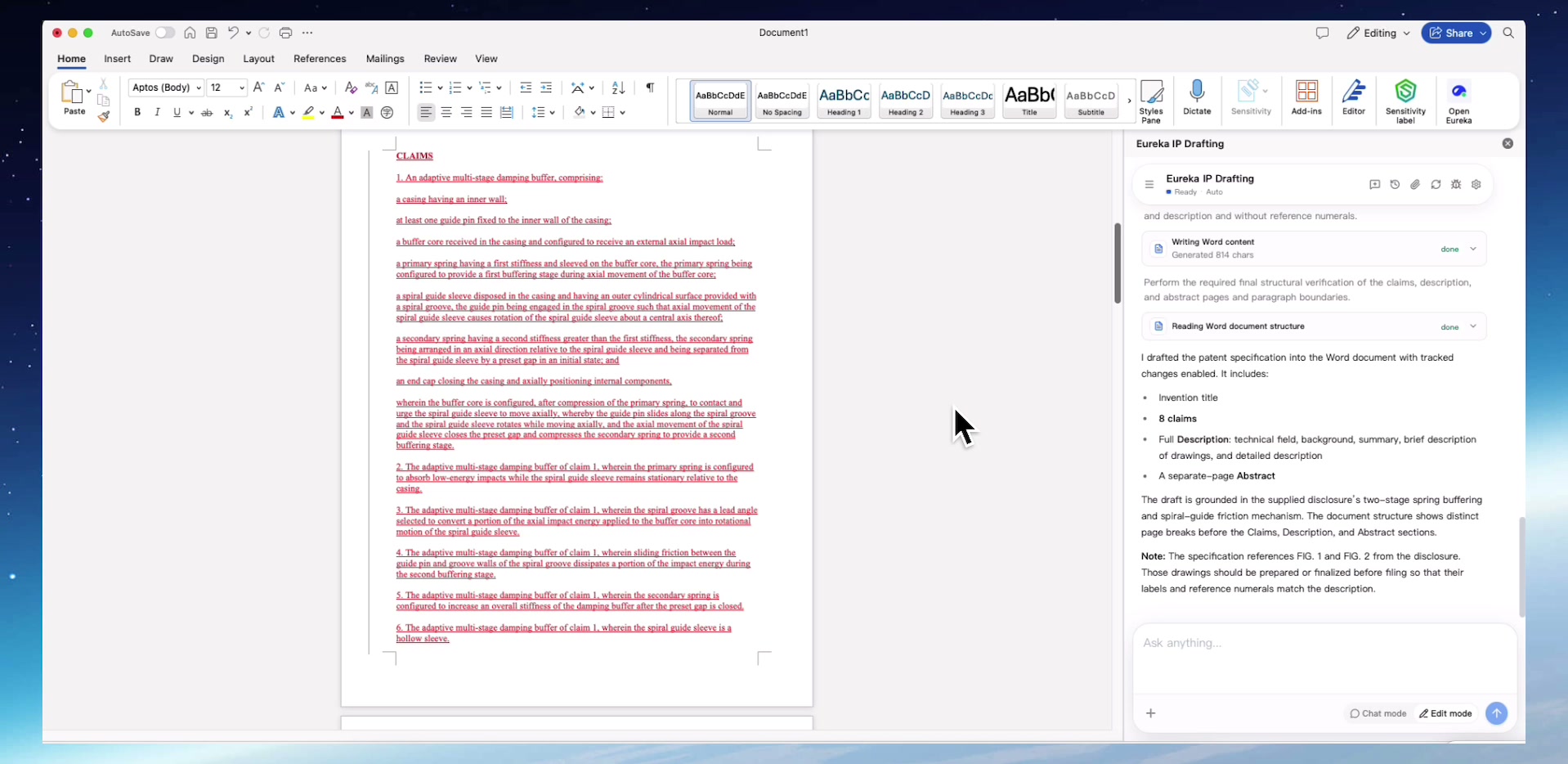
Patent drafts live in Word, and so do the comments that drive each revision. Patsnap Eureka · Word Add-in became generally available in October for the Microsoft Word desktop app on Windows and Mac. It analyzes an invention disclosure, marks points that need inventor confirmation, and drafts the claims, description, and abstract into your document for the office you file in.
Leave comments in the draft, then ask the add-in to revise the claims and the matching description. In our demo, the draft and the comment-driven revisions arrived as Word tracked changes, which you accept or reject in the Review tab. Professional review is still required before filing. The add-in installs from Add to Word on the Patsnap Eureka IP Drafting page.
Read how the Word Add-in works →
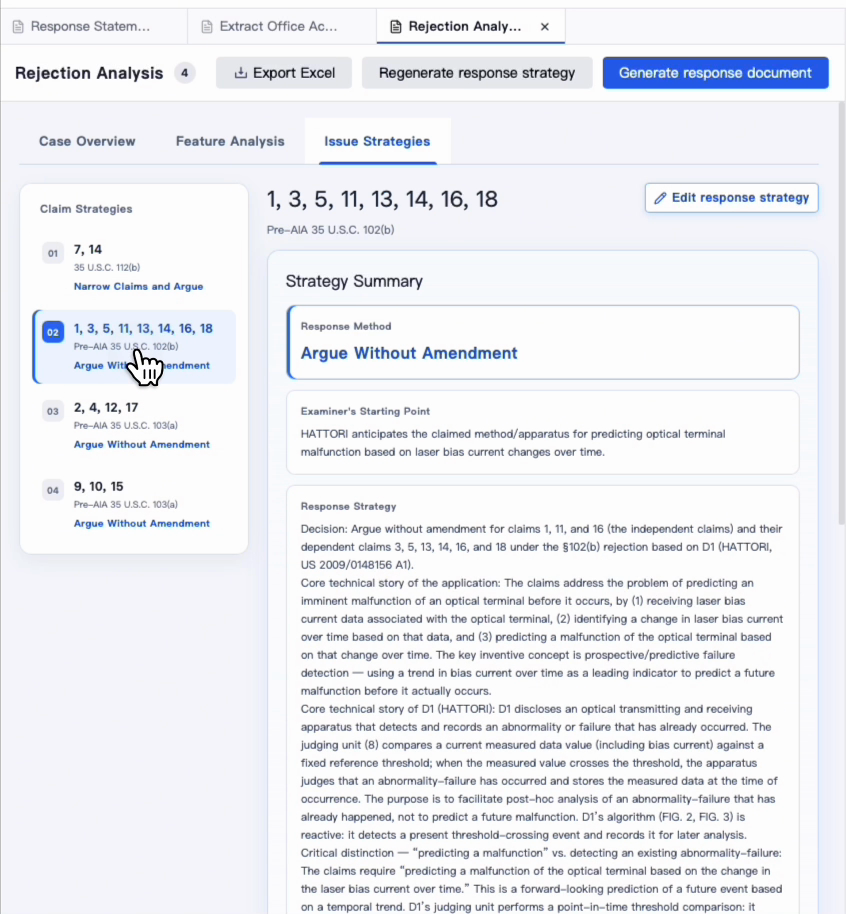
An Office Action often raises several rejections, and each needs its own argument. In the upgraded Office Action Response, you upload the Office Action and related files, and the Rejection Analysis proposes a response strategy for each issue it identifies. You can edit a strategy directly, regenerate it with your own instruction, or tell Hiro what you want changed.
Where the draft shows a source number, open it to see the file, page, and passage. You can also select a passage and choose Citations to see how it is supported. The response you file is still your decision. Office Action Response is part of Patsnap Eureka IP Drafting, and the IP Drafting page lists a trial for it.
Read what changed in Office Action Response →
On October 28, we ran a hands-on AI for R&D workshop at SWITCH 2026 in Singapore. Read the workshop recap →