
Office Action Response: set the strategy issue by issue
Work through each rejection with the cited art and sources side by side.
Work through each rejection with the cited art and sources side by side.
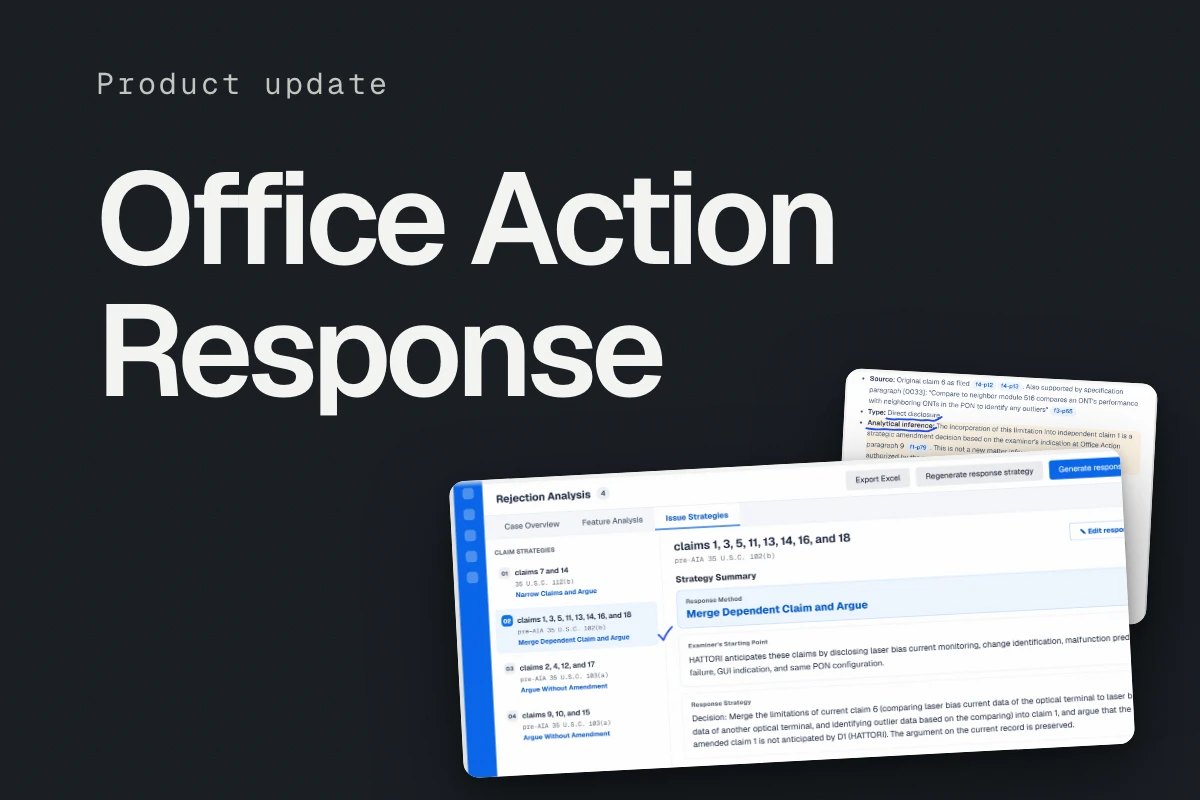
An Office Action response turns on decisions made one rejection at a time: argue or amend, which reference to attack, which dependent claim to fold in. We have upgraded Office Action Response in Patsnap Eureka around those decisions. You upload the Office Action and related files. The analysis lays out each issue it identifies against the cited art and proposes a strategy for each one. You can change a strategy before the response is written, then check the sources behind the statements you select.
Each rejection needs its own reasoning. To get there, you go back and forth between the Office Action, the claims under examination, and several references, then write statements a supervising attorney can verify.
The upgrade keeps that reasoning visible and editable at three levels: the case as a whole, the feature-by-feature comparison, and the strategy for each issue. The response and any amendment documents open in separate tabs.
Under 10 minutes. Internal same-case test.
Open Office Action Response in Patsnap Eureka IP Drafting. You can enter the application number, select the matching application, and check that the retrieved Office Action is the one you are responding to. Or upload the Office Action and any supporting PDFs.
Extract Office Action Info then shows what the analysis will work from: the application, the claims under examination, the current Office Action, and the cited prior art. Each issue is listed with the examiner's reasoning and the references relied on. If something is missing, upload it. If the extraction is wrong, tell Hiro, the drafting assistant on the right, exactly where to look.
In supported languages, you can work in the language you prefer and produce the response in the language the target office requires.
The Rejection Analysis puts the case in three views.
Case Overview gives any proposed amendments and a brief response approach for the whole Office Action.
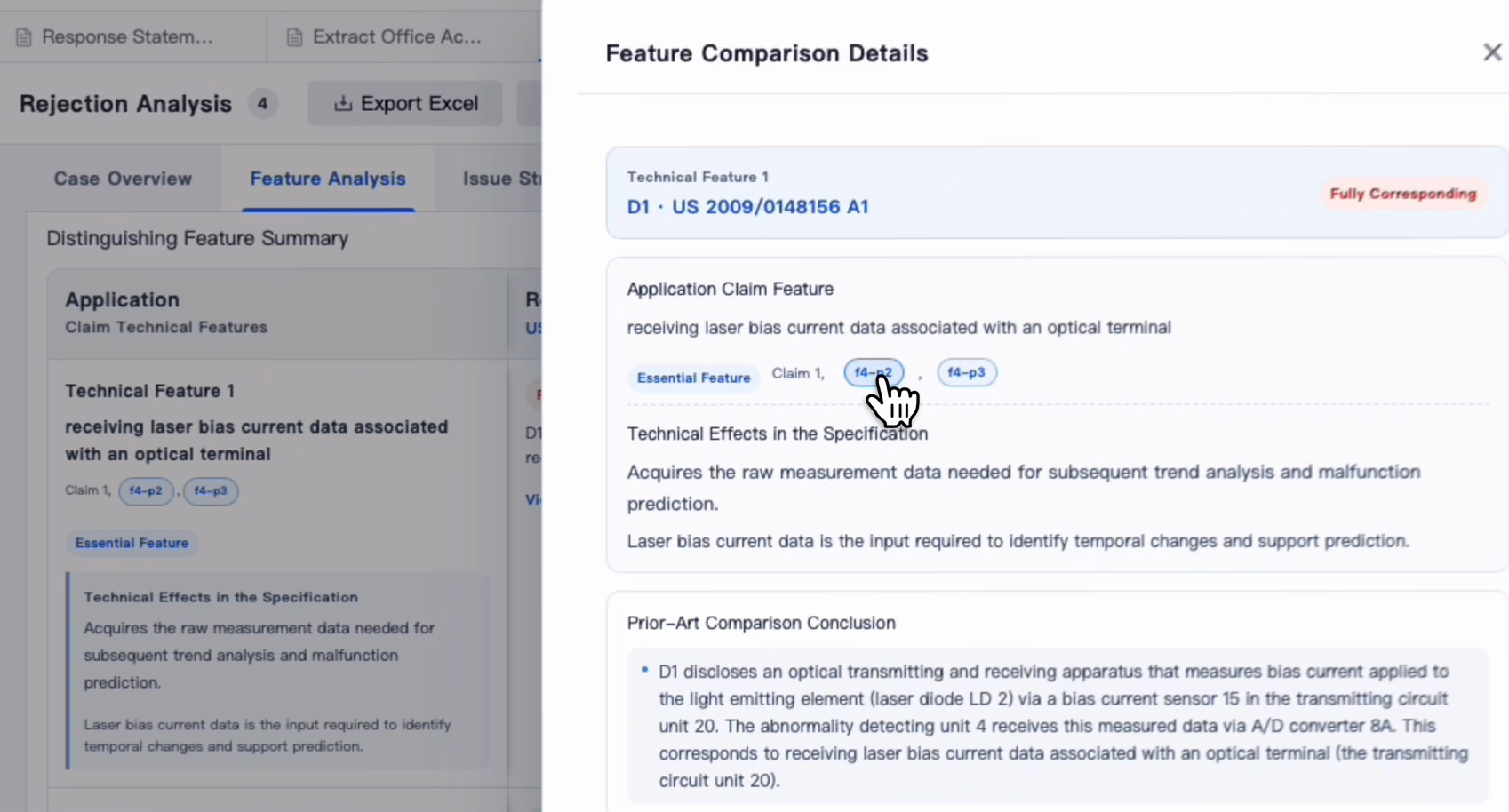
Feature Analysis breaks your claims into technical features and, when comparison data is available, compares each one with the cited references. Open a feature to see the technical effect described in your specification, the prior-art comparison conclusion, and links to the source paragraphs.
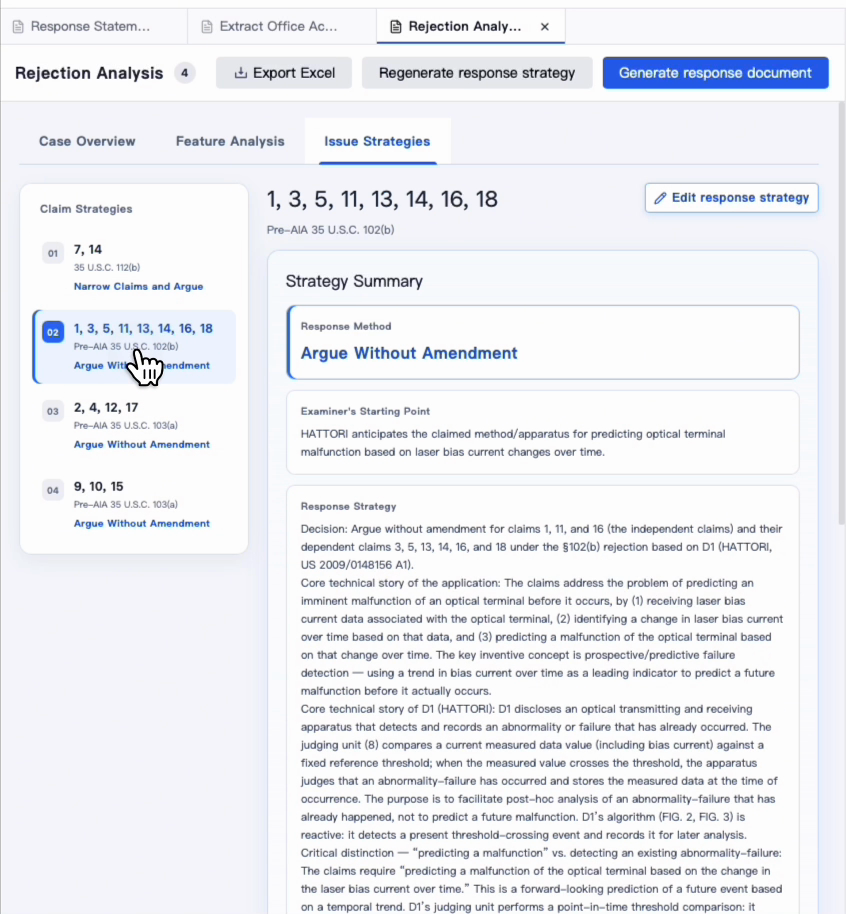
Issue Strategies lists the identified issues on the left. Select one to see the response method, such as Argue Without Amendment or Narrow Claims and Argue, the examiner's starting point, and the full strategy.
If a strategy is not what you would file, change it in one of three ways:
Regenerating replaces the strategy for the issues you select, so regenerate before you hand-edit that issue. If the direction or the claim amendments change, update the strategy first, then generate the documents. Fix wording and formatting directly in the draft.
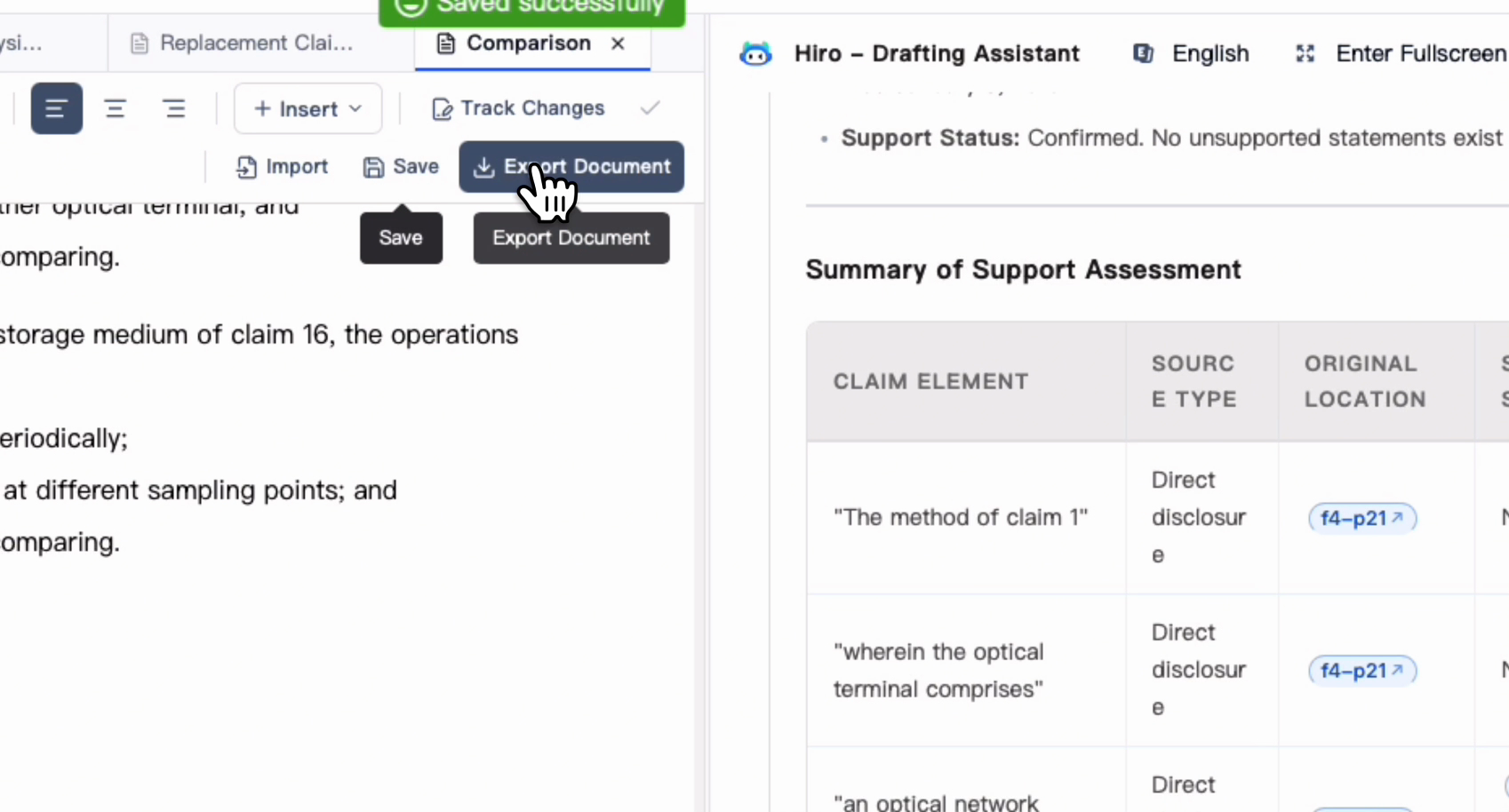
Select Generate response document. Depending on the case, you get documents such as a Response Statement, Replacement Claims, and a Comparison of the amendments, each in its own tab.
Two tools help you check the draft before it goes out:
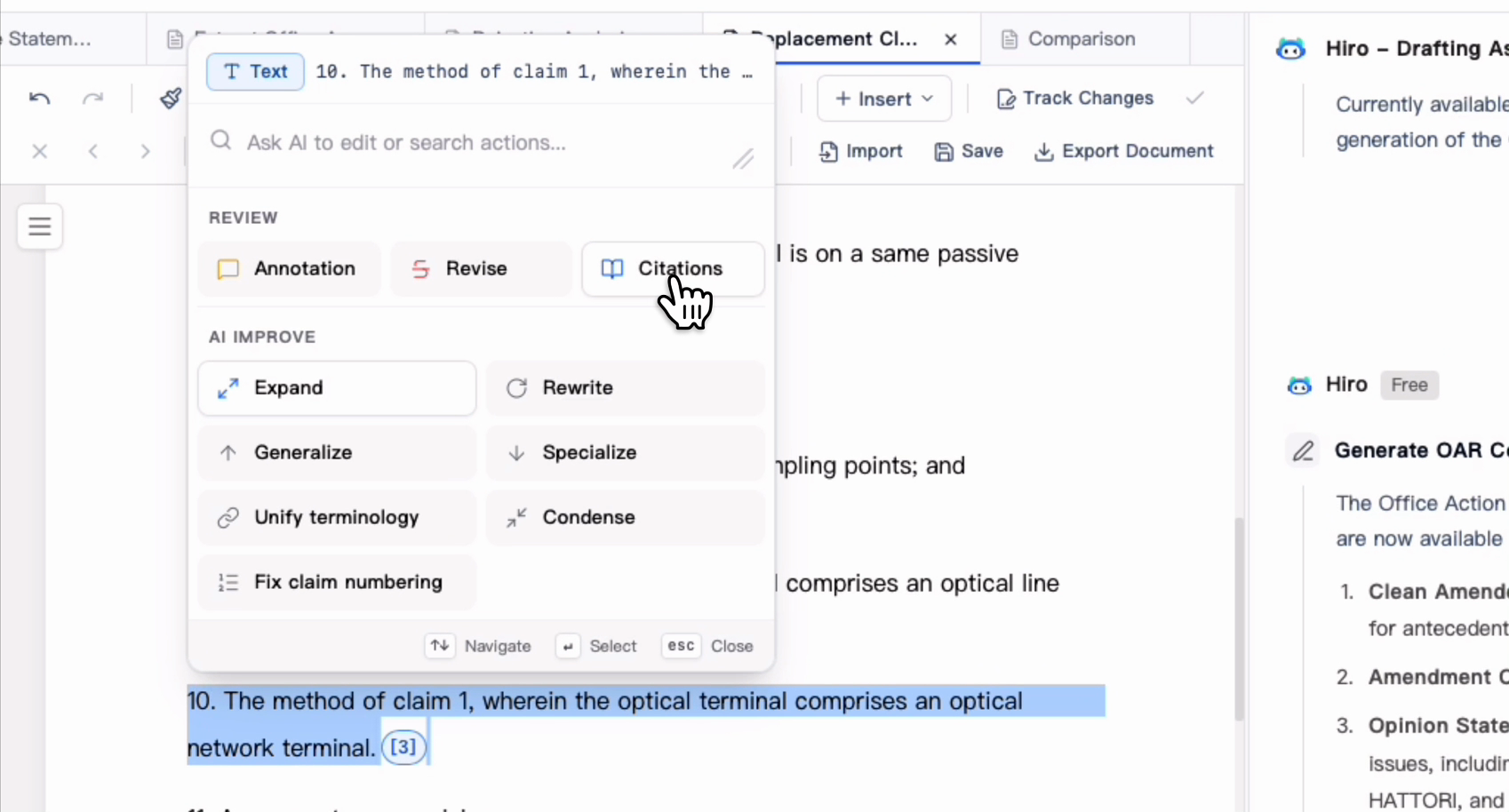
The same selection menu offers editing actions such as Expand, Rewrite, Condense, Unify terminology, Generalize, Specialize, and Fix claim numbering. When you are done, save and export the document, or export the analysis table to Excel.
Office Action Response is part of Patsnap Eureka IP Drafting and is built for patent attorneys, patent agents, and prosecution teams. Its output is a draft for professional review: it shows the evidence and reasoning, and you decide how to respond. The Patsnap Eureka IP Drafting page lists a trial for Office Action Response.