
Patsnap Eureka Word Add-in: draft and revise patent applications
Draft and revise patent applications without leaving Microsoft Word.
Draft and revise patent applications without leaving Microsoft Word.
Patent applications are written, reviewed, and revised in Microsoft Word. A partner comments on the claims, a client marks up the description, and each round has to come back as a clean document. Patsnap Eureka · Word Add-in became generally available in October 2026 and brings Patsnap Eureka patent drafting into that document. You can analyze an invention disclosure and draft the application in Word. When your comments change the claims, the add-in can revise the matching description passages too.
If you draft in a separate tool, you paste the result back into Word. That breaks what patent work depends on: comments in the margin, tracked changes, and one document the whole team reviews.
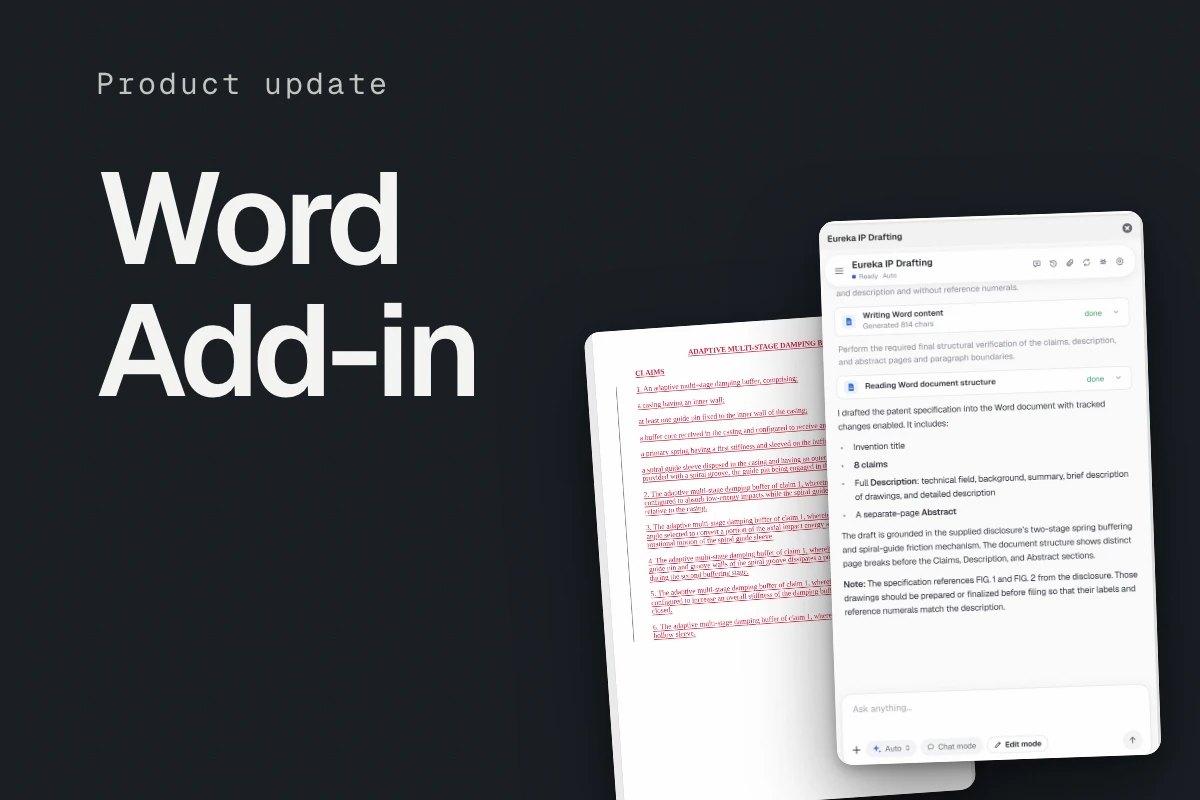
The Word Add-in opens as a side panel next to your document. Source files, instructions, and the conversation stay in the panel, and the application stays in Word, in your formatting. The add-in is built for patent attorneys, patent engineers, R&D professionals, and IP managers who already draft and review in Word.
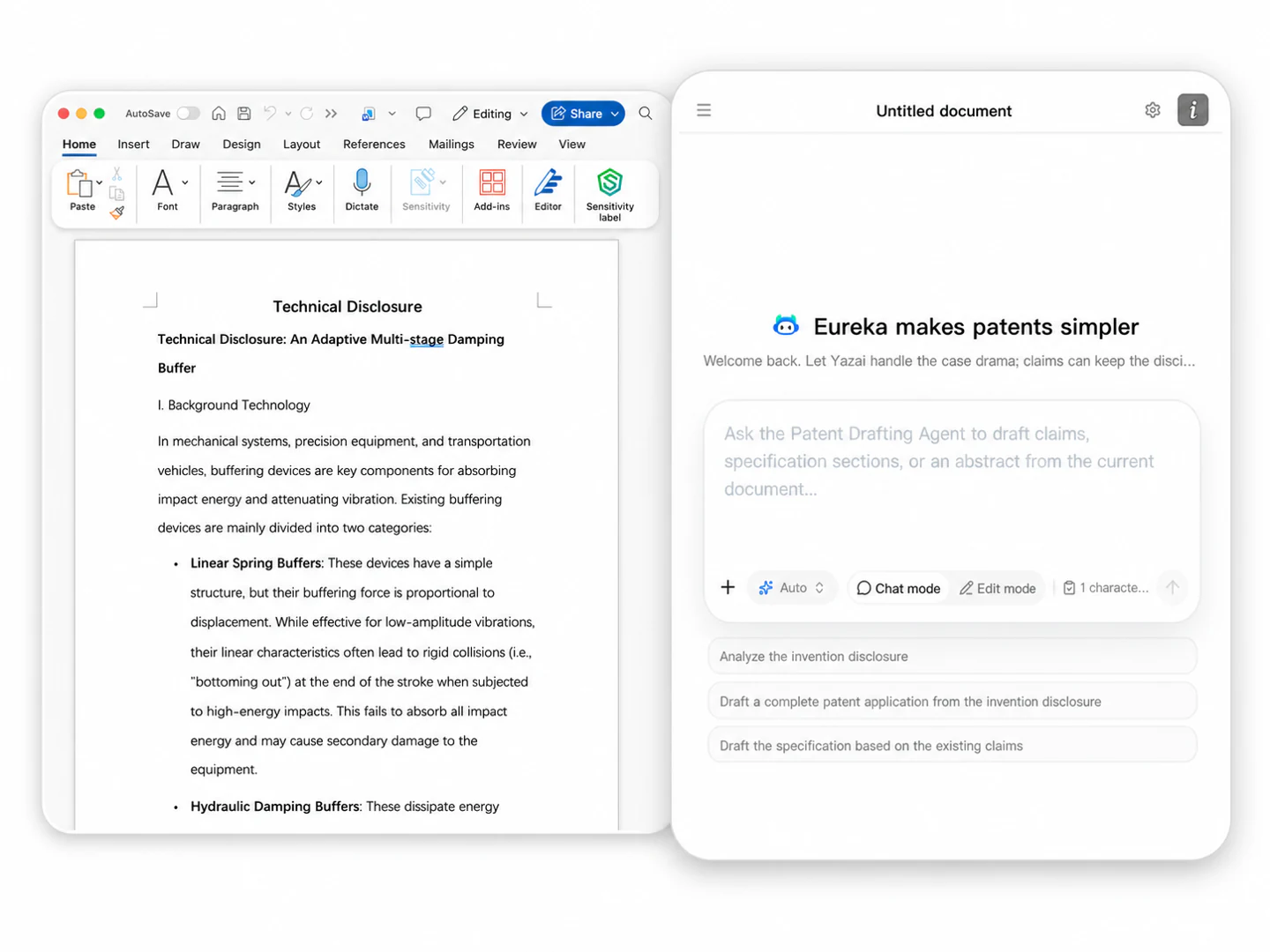
Select the plus button next to the prompt box to upload the invention disclosure and any reference files. You can upload PDF, Word, spreadsheet, text, and image files.
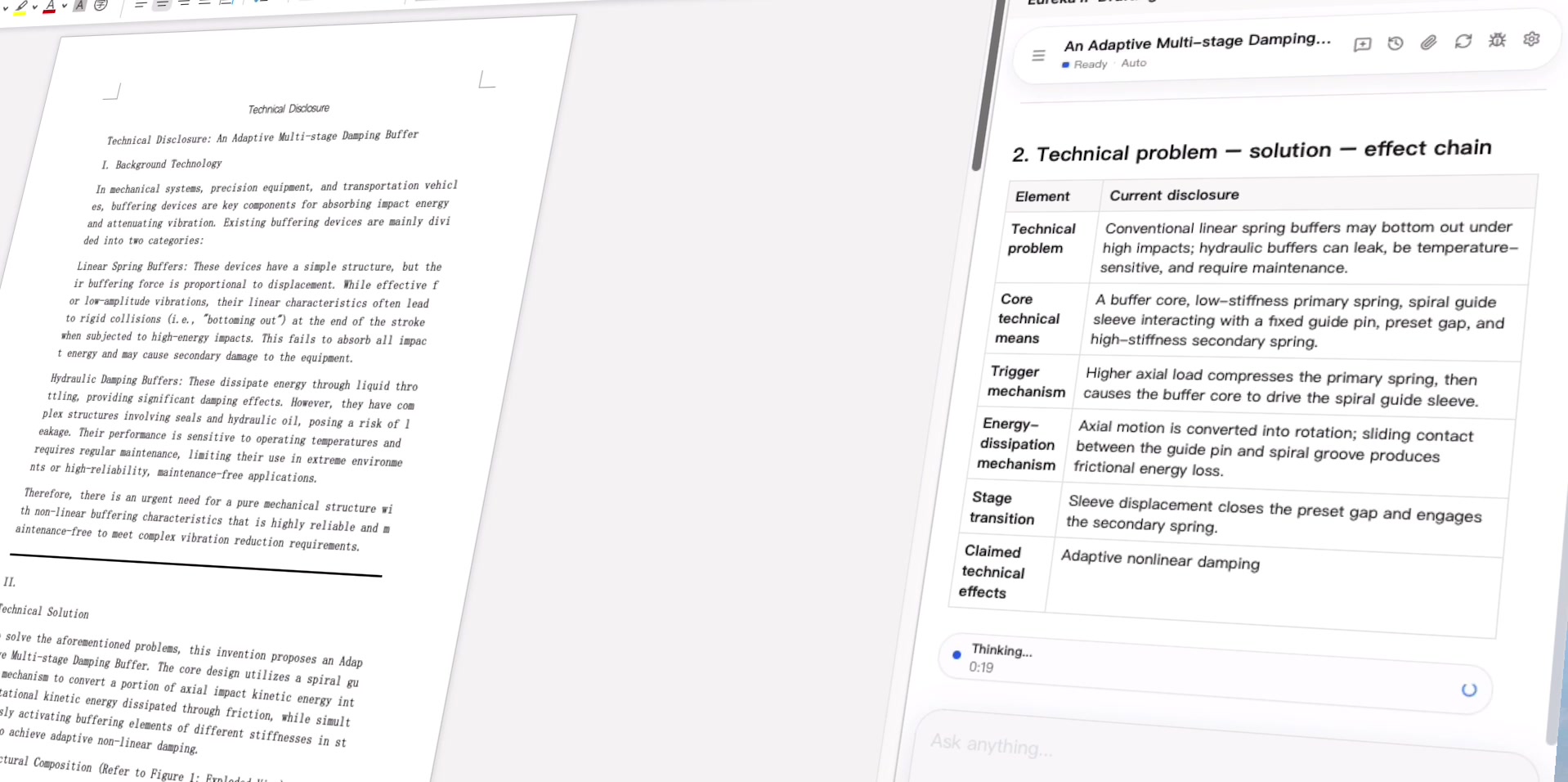
In Chat mode, ask for a technical analysis. In our demo, the add-in laid out the technical problem, the core technical means, and the claimed effects as a table, then listed candidate technical features and marked the ones that needed inventor confirmation. Check each feature against the disclosure, and note what material is still missing before you draft. Chat mode analyzes and answers questions. It does not change your document.
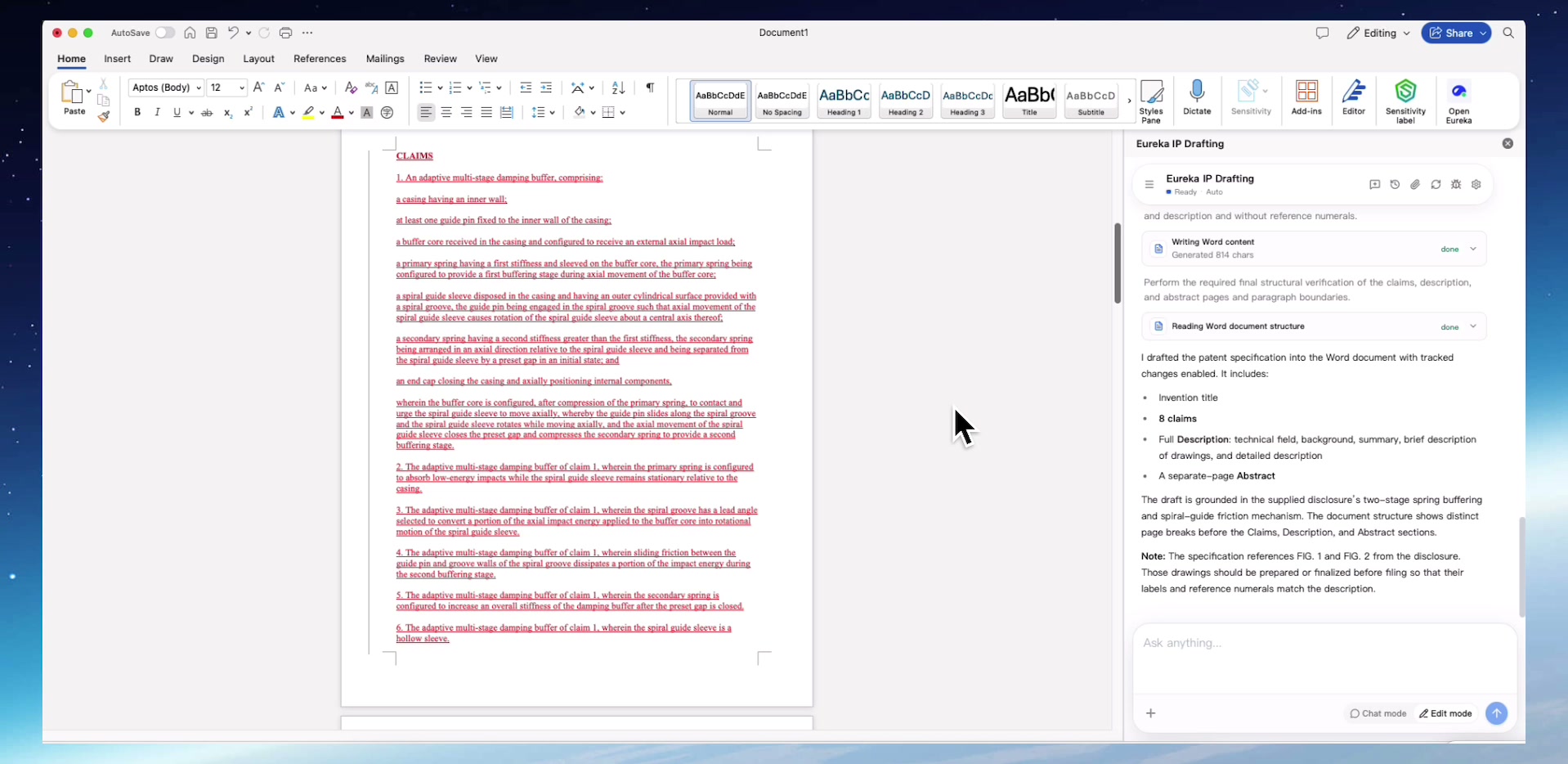
Before the add-in writes into an important document, keep a separate copy of the original. Then tell the add-in the target office, what the application should include, and what you want to protect. It picks the drafting Skill for that office and technical field itself, and the panel shows which Skill it loaded. There is no Skill menu to choose from.
In our demo, the add-in wrote the title, claims, description, and a separate-page abstract into the document as tracked changes. The panel then summarized what it wrote and what still needed attention, such as checking that drawing labels and reference numerals match the description. If you already have claims, you can ask it to draft the specification from them instead.
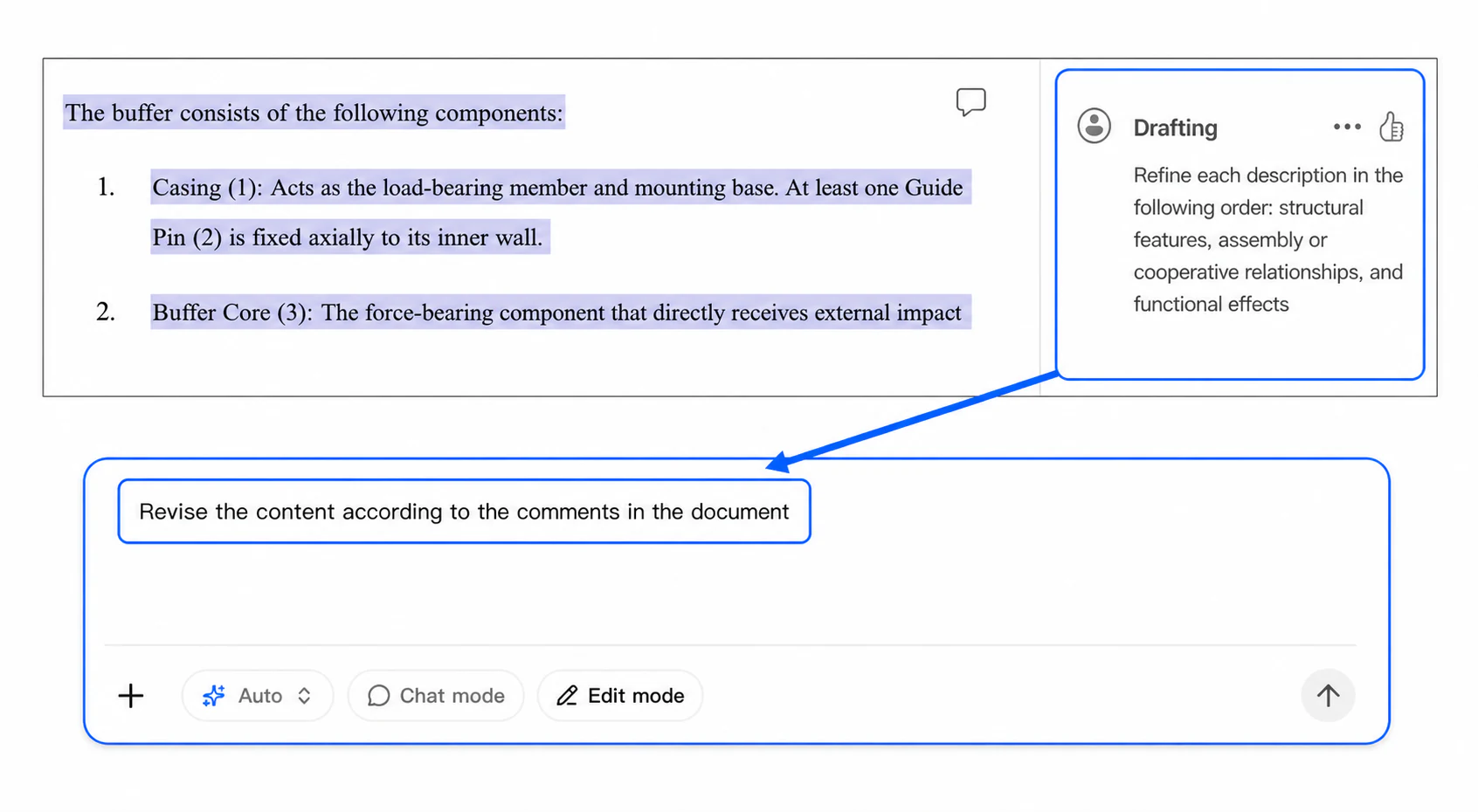
Review a draft the way you already do: leave comments in Word. Then give the add-in an instruction, for example:
The add-in reads the comments, revises the claims, and carries the changes into the matching parts of the description. You can also send a separate check, such as "Process all comments and check for omitted or conflicting revisions."
To work on a single passage, switch to Edit mode, select the text, and ask for a specific rewrite, a tighter version, or an expansion. Review the add-in's suggestion for the selected passage in Word.
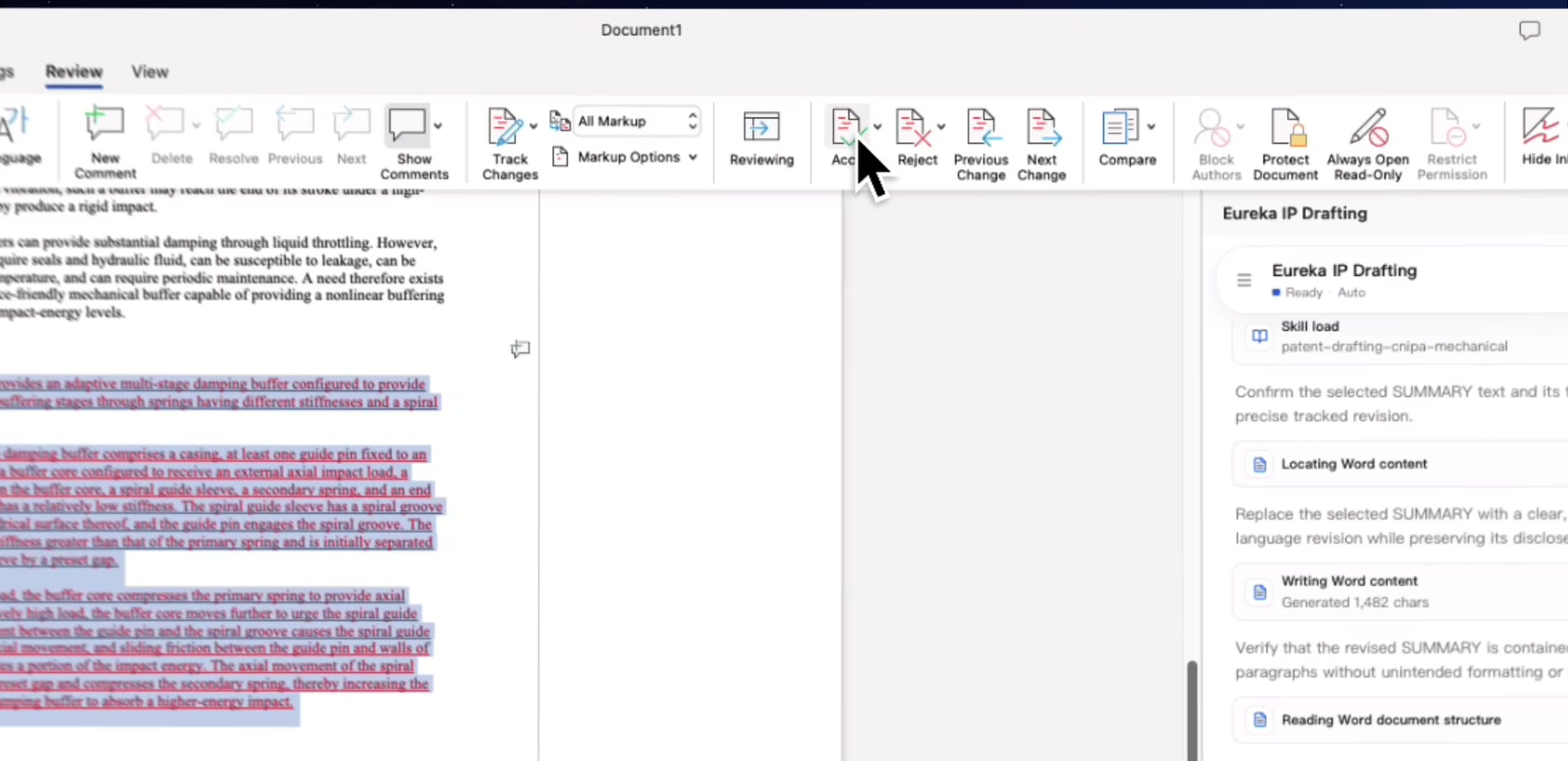
In our demo, the revisions appeared as tracked changes, and the reviewer accepted or rejected them from the Review tab, one change at a time or all at once.
Your source materials set the factual boundary. When the disclosure does not say enough, add material or keep the wording conservative rather than present an inference as fact. A patent professional should still review the technical facts, the scope of protection, and office-specific requirements before filing.
Where the add-in appears depends on your Word version. In Microsoft 365, select Add-ins on the Home tab. In older versions such as Word 2016, 2019, and 2021, go to Insert > My Add-ins.
The add-in runs in the Word desktop app, and WPS is not supported. The document you work in needs to be in .docx format, while reference files you upload can also be .doc. The Word Add-in help center lists supported Office versions and installation steps.